Basics of Task Design
1. Enter the Design interface using the top menu:
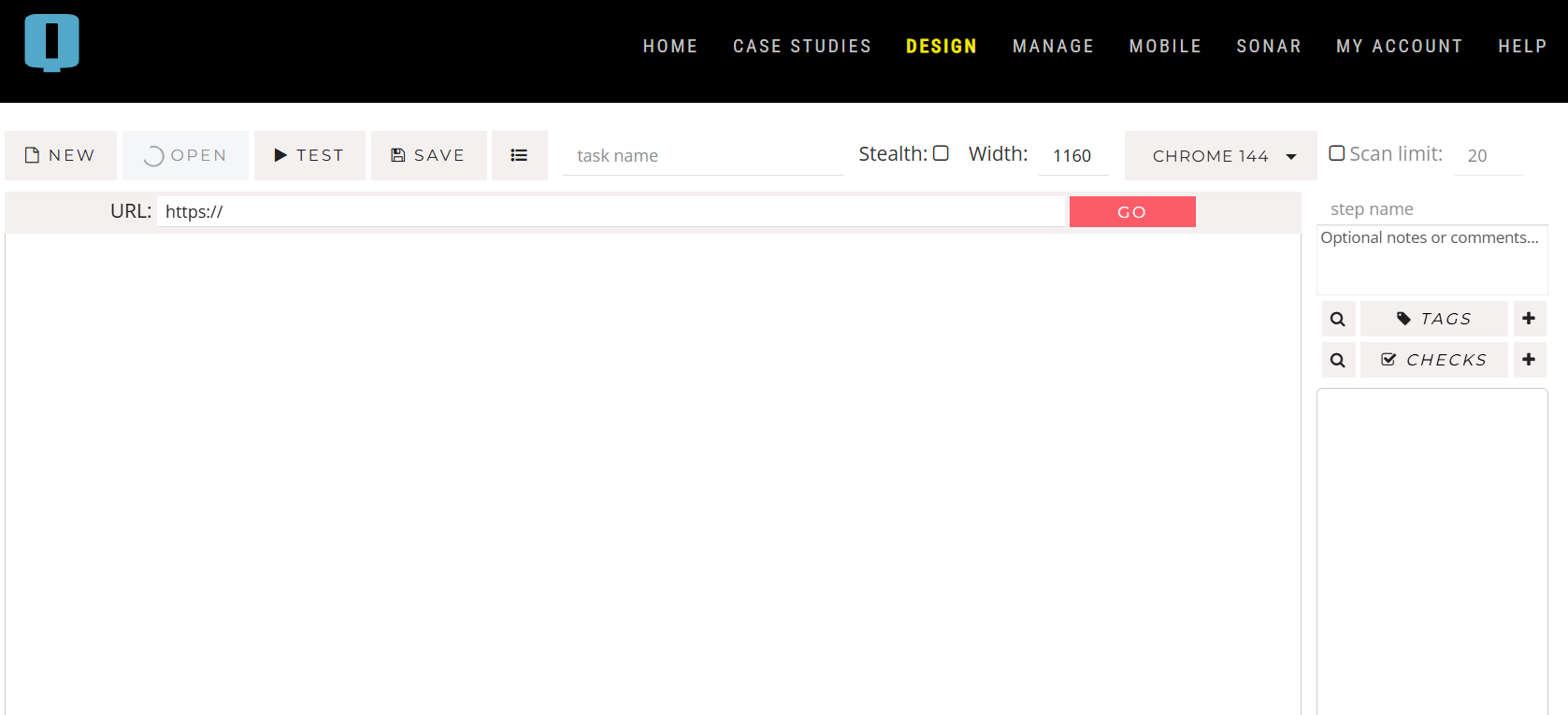
2. The Design UI looks a lot like a web browser. In the navigation bar, enter the URL of the page where you want the task to begin.
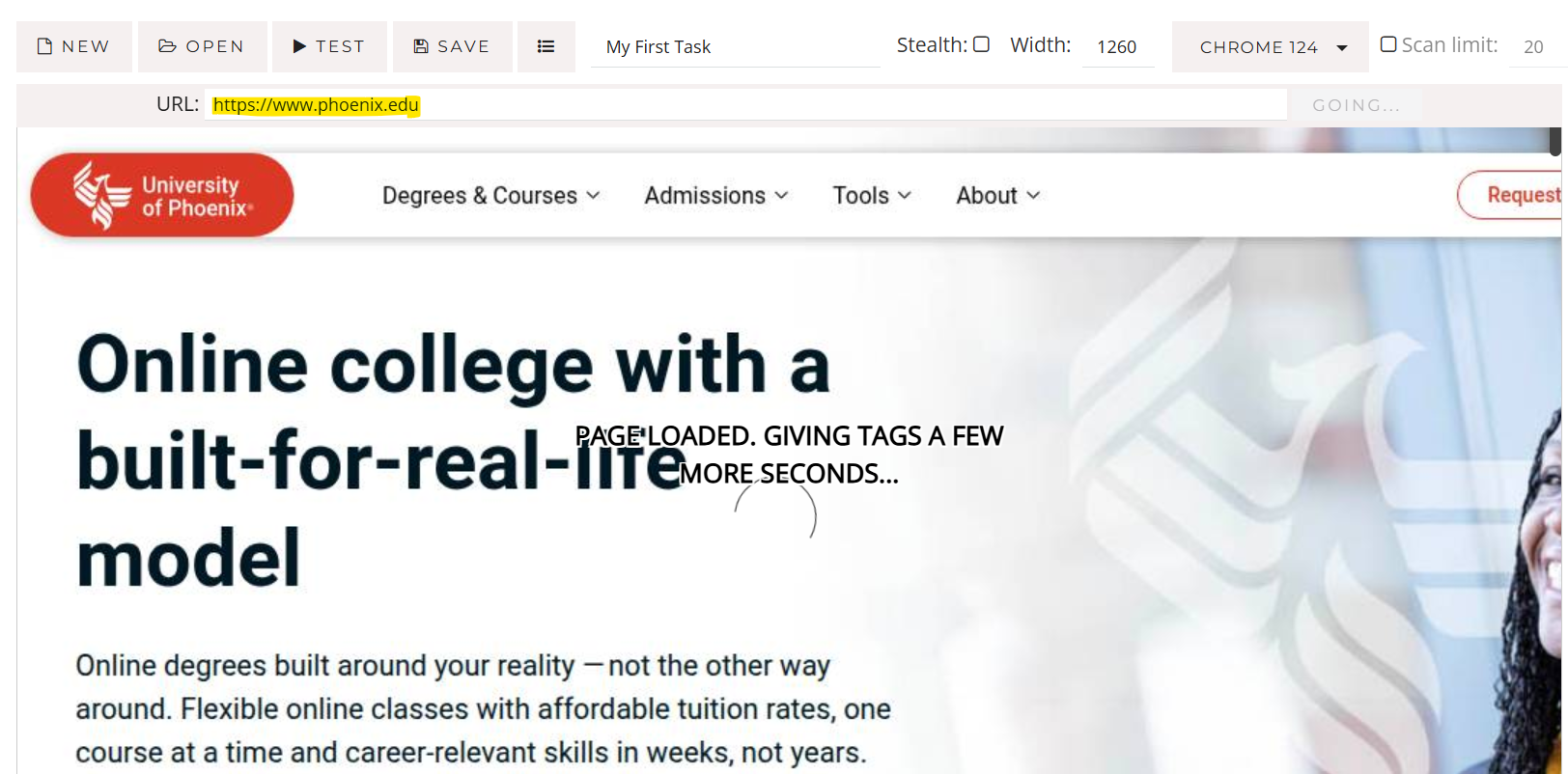
3. When the page has loaded, click on the Tags button in the right-hand menu to inspect any existing tracking calls and add checks based on them: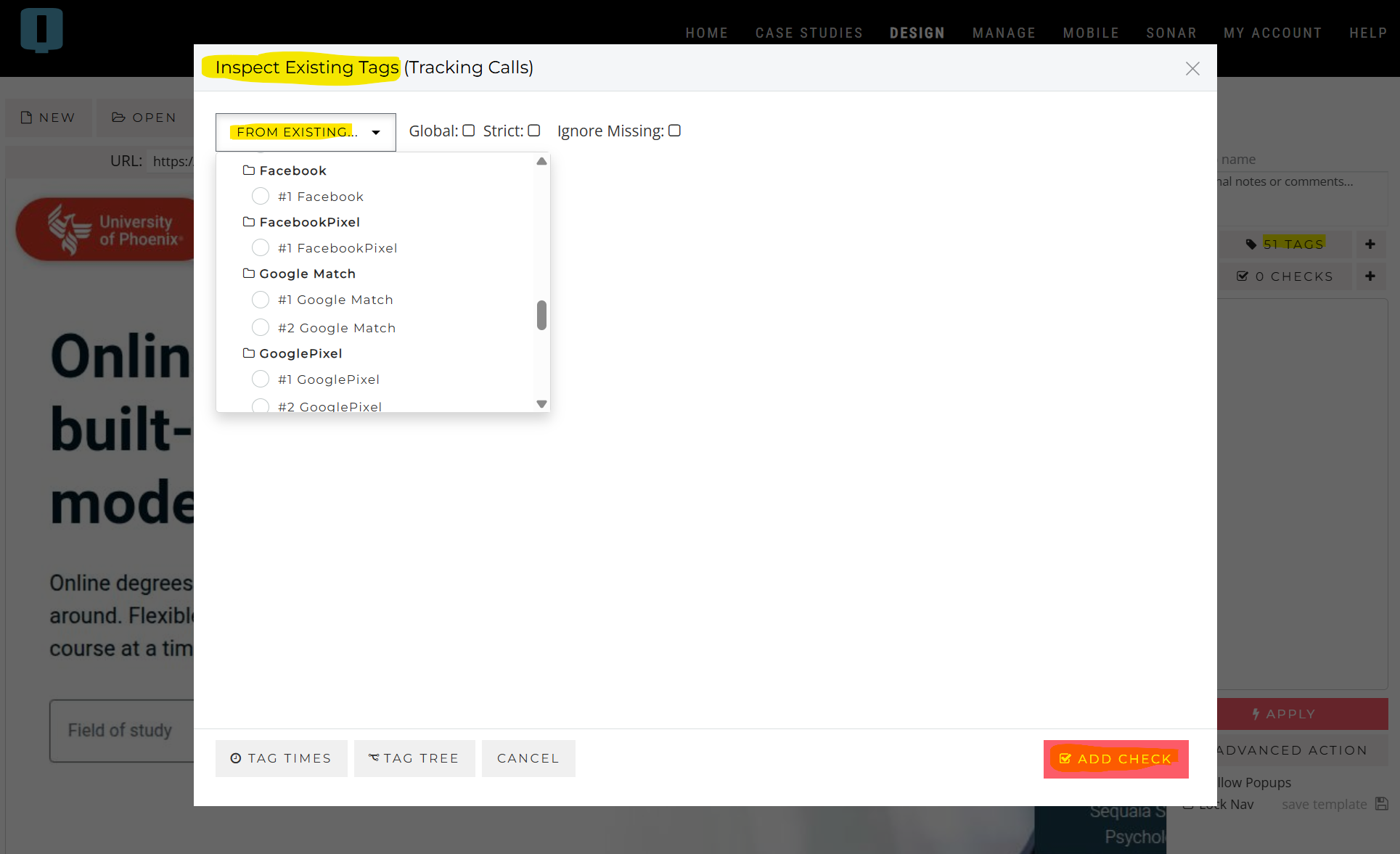
4. Starting with existing tags is the typical way to build a task. But you can also add checks for tracking calls that do not already exist, or should not exist, using the Checks + button and selecting from all the vendors that the platform supports. Then you can add rules that the tracking URL or parameters have to obey:
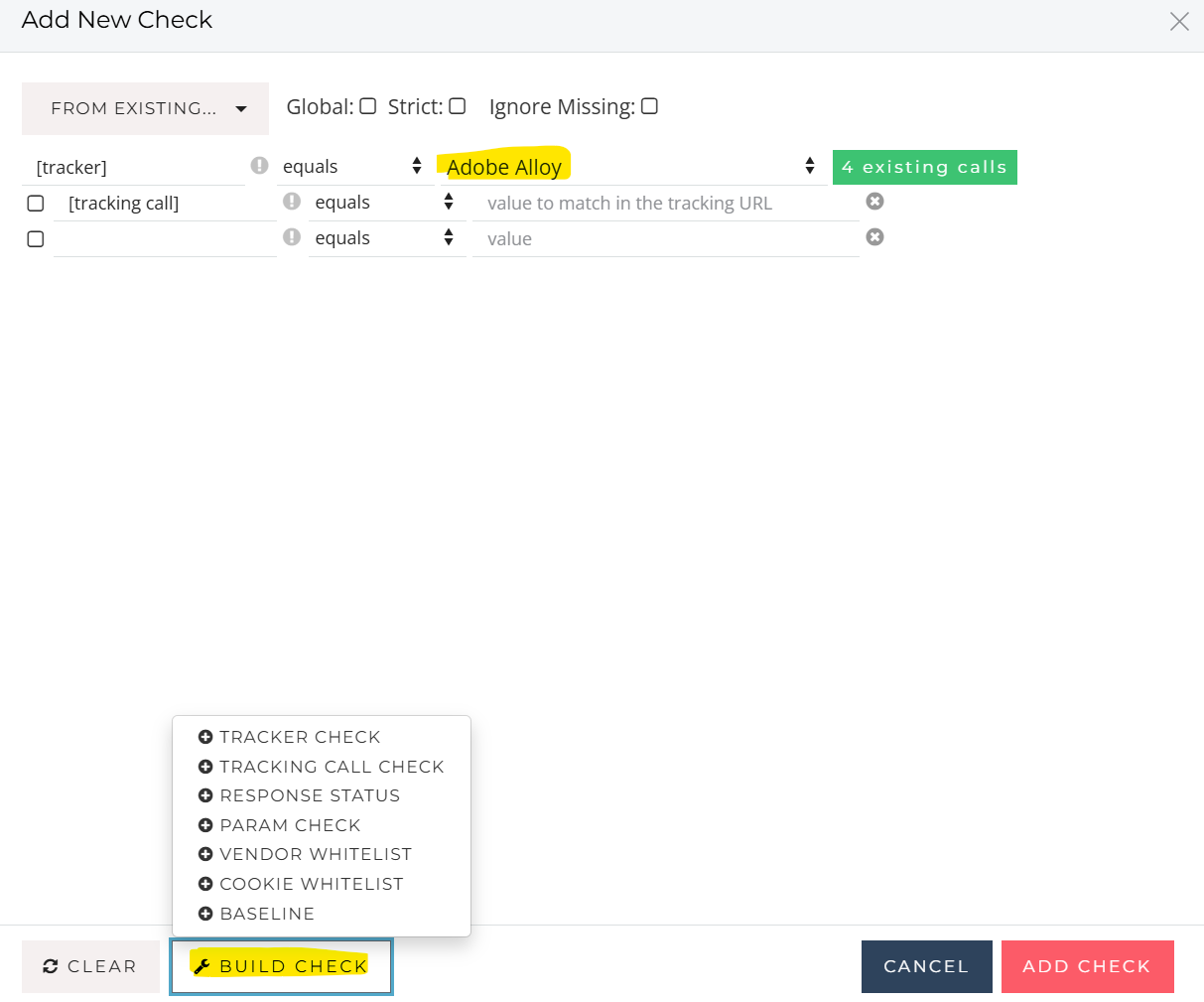
5. A single check can apply a variety of rules. Not just whether the right data is sent at the right time, but also counting number of tracking calls to check for duplicates, e. g. Parameter rules also come in a range that can enforce compliance easily. When you're happy with the definition, press 'Add Check' or 'Save' (if you're modifying an existing one):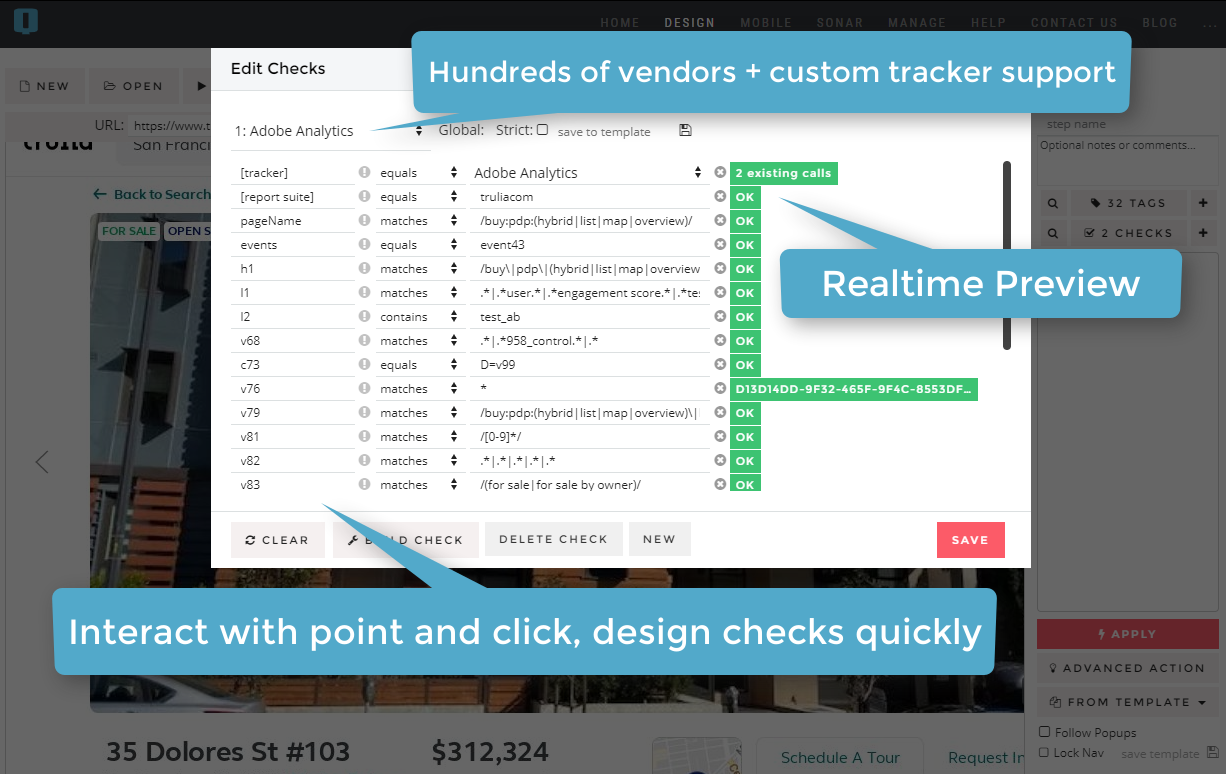
5. Verify that your check has been added to the list of checks for this step. Now, it's time to design a more advanced check. Click on a page link and you will see details about your action appear in the Actions queue. You can queue up one or more page interactions. Note that some interactions may reveal dynamic page elements, in which case you will need to apply them before those elements are revealed.
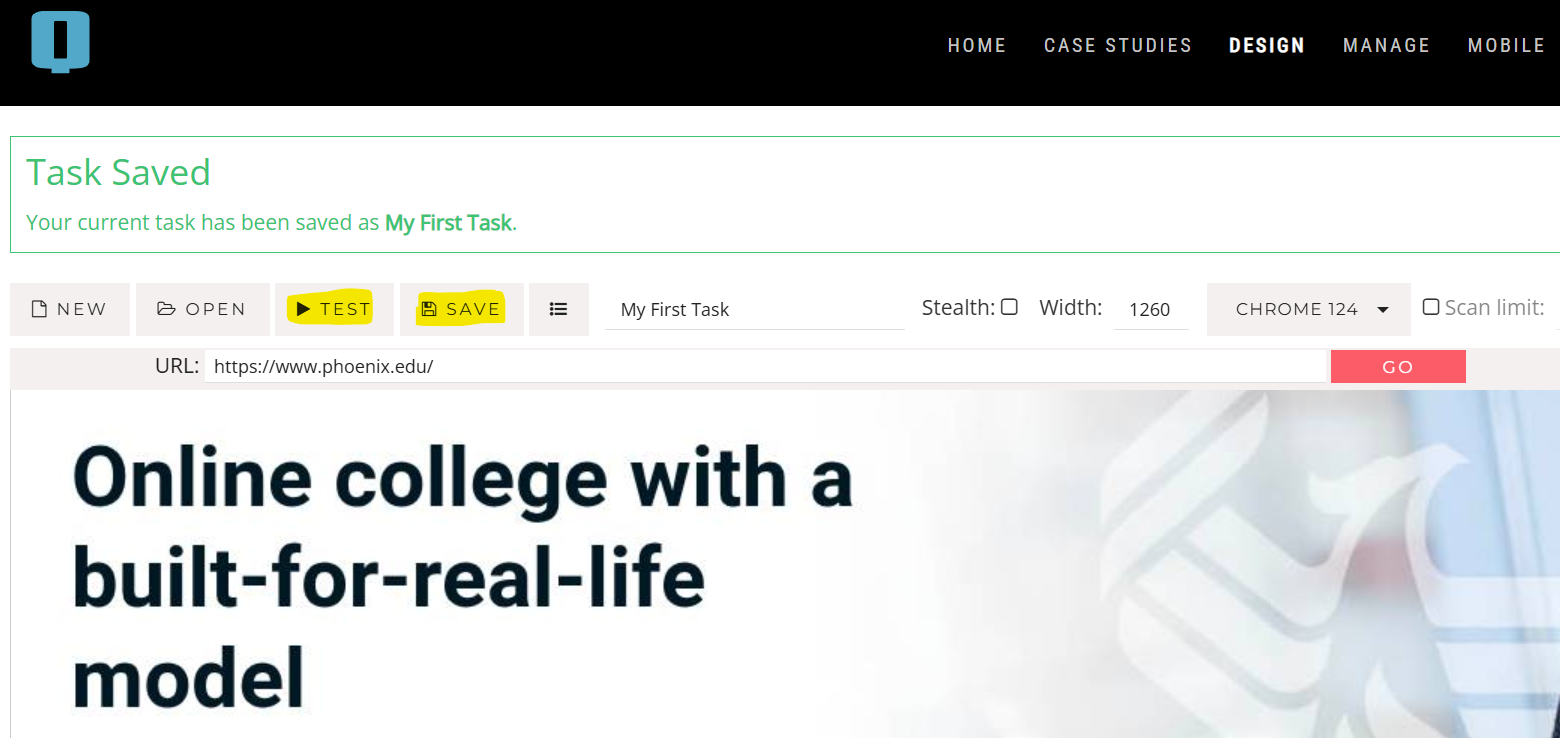
6. Once you have pressed "Apply", your interactions will be performed in the same way as a user would do them and you are taken to the next step. At this point, you should be able to see any new tags that fired as a result. You can check parameters on those calls in the same way that you did at steps #3 and #4: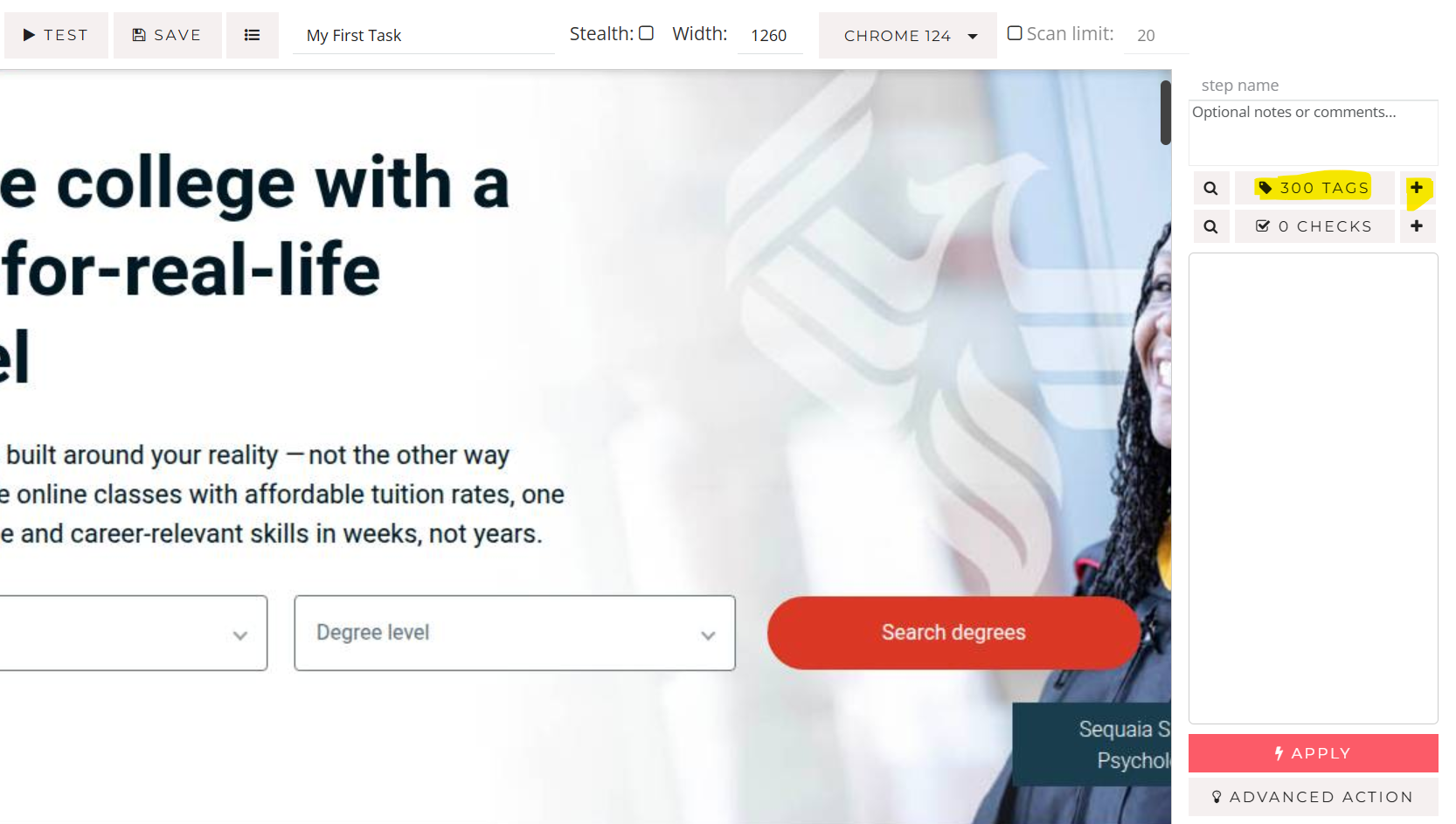
7. Now, save your task. Optionally, perform a quick test directly from the Design interface. This test allows you to see how the task will execute during a scheduled automated run: